You know the drill. An email comes in with meeting details, and suddenly you're switching tabs, copying the date, pasting it into Google Calendar, going back for the time, then the location, then the meeting link. It's 2024, and we're still doing this manually?
If you use Gmail and Google Calendar (and let's be honest, who doesn't at this point), there's a much better way. I'm going to walk you through how to create calendar events from your emails automatically—and I mean actually automatically, not the "automatically" where you still click through five menus.
The Problem With Manual Event Creation
Here's what usually happens. You get an email about a meeting, a deadline, or an event. Maybe it's from a client, your kid's school, or a conference you signed up for months ago. The email has all the details you need: date, time, location, maybe a Zoom link buried somewhere in the middle.
So you open Google Calendar in another tab. You click "Create." You start typing. But wait—was that meeting at 2pm or 2:30pm? Back to the email. Oh, and it's Pacific time, but you're in Eastern. More mental math. By the time you're done, you've spent 3-4 minutes on something that should take seconds.
Now multiply that by every email you get with event details. It adds up fast.
Quick math: If you create just 3 calendar events from emails per day, and each takes 3 minutes, that's over 15 hours per year spent on copy-paste. There are better ways to spend 15 hours.
What Google Does (and Doesn't Do) Natively
Google Calendar does have some built-in features for this. Gmail can sometimes detect events in emails and show a little "Add to Calendar" prompt at the top. Sounds great in theory.
In practice? It works maybe 30% of the time. It misses events constantly, especially if the email isn't formatted in a very specific way. And when it does work, it often gets the details wrong—wrong time zone, missing the location, or creating the event on the wrong date entirely.
Plus, it only works for certain types of emails. Got a client who writes "let's meet Tuesday at 3" in the body of an email? Google's native detection will stare at that blankly.
A Better Approach: Using AI to Read Your Emails
This is where things get interesting. Modern AI can actually understand context in emails the way you do. It doesn't just look for keywords like "meeting" or "appointment"—it reads the whole email and figures out what's actually being scheduled.
"Hey, can we hop on a call Thursday afternoon? Maybe around 2?" An AI tool can parse that, understand it's a meeting request, suggest Thursday at 2pm, and create the event. No rigid formatting required.
How Gmail to Calendar AI Works
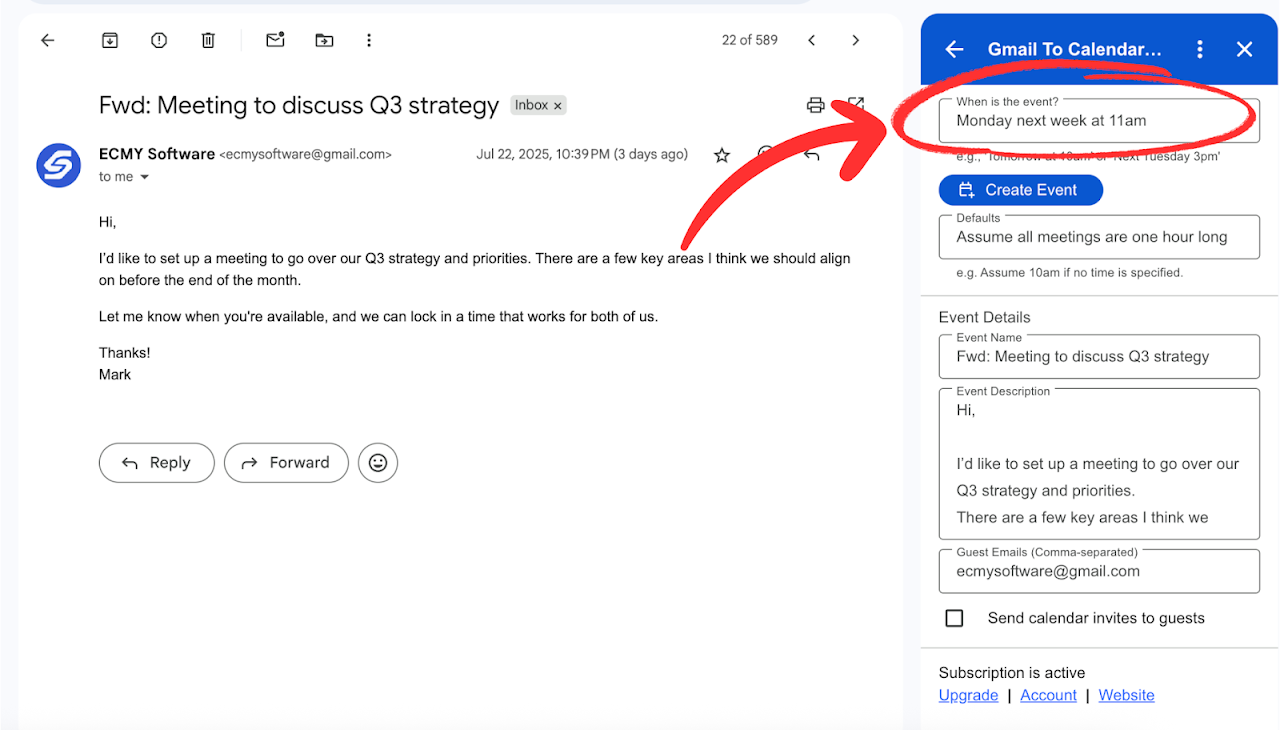
I built Gmail to Calendar AI specifically to solve this problem. Here's how it works:
Open any email in Gmail
Could be a meeting request, event invitation, deadline reminder—anything with date/time information.
Click the add-on icon
The AI reads your email and extracts all the relevant details: what, when, where, and any meeting links.
Review and create
The event is pre-filled with everything. Make any tweaks you want, then hit create. Done.
The whole thing takes about 5 seconds. No switching tabs, no copying, no pasting.
What Can It Actually Parse?
This is usually the first question I get. People want to know: will it work with my emails? Here's what the AI handles:
- Formal invitations – Conference invites, webinar registrations, formal meeting requests
- Casual messages – "Let's grab coffee Wednesday morning" or "Call me at 4?"
- Deadline emails – "The report is due by Friday at 5pm"
- Travel itineraries – Flight times, hotel check-ins, rental car pickups
- School and kid stuff – Parent-teacher conferences, recitals, game schedules
- Appointment confirmations – Doctor's office, car service, anything with a scheduled time
Basically, if a human can read an email and understand there's an event in there, the AI can too.
Manual vs. Automated: The Real Difference
Here's what this looks like in practice:
| Task | Manual | With AI |
|---|---|---|
| Read email for details | You do it | AI does it |
| Open Google Calendar | New tab | Not needed |
| Enter event title | Type manually | Auto-filled |
| Set date and time | Copy-paste or memorize | Auto-filled |
| Add location/link | Hunt through email | Auto-filled |
| Time zones | Mental math | Handled automatically |
| Total time | 2-4 minutes | ~5 seconds |
Is This Actually Secure?
Fair question. You're giving an add-on access to your emails, so you should know what's happening with that data.
Gmail to Calendar AI only reads the specific email you're viewing when you click the button. It doesn't scan your entire inbox and doesn't share your data with third parties. The AI processing happens, the event gets created, and that's it.
It's also a Google Workspace approved add-on, which means it went through Google's security review process.
Getting Started
If you want to try this out, here's how:
- Go to the Gmail to Calendar AI page on the Google Workspace Marketplace
- Click "Install" and grant the necessary permissions
- Open any email with event details
- Click the add-on icon in the sidebar
- Watch it work
There's a free trial so you can test it with your actual emails before deciding if it's worth keeping.
Ready to stop copying and pasting?
Try Gmail to Calendar AI free for 14 days. No credit card required.
Get Started FreeWrapping Up
Look, I'm not saying manually creating calendar events is the worst thing in the world. It's just... unnecessary at this point. The technology exists to do this automatically, and it actually works well now.
If you're someone who gets a lot of emails with event details—meetings, deadlines, appointments, whatever—automating this one small task can save you a surprising amount of time and mental energy over the course of a year.
Give it a shot. Your future self (the one who isn't switching between tabs five times to schedule a single meeting) will thank you.