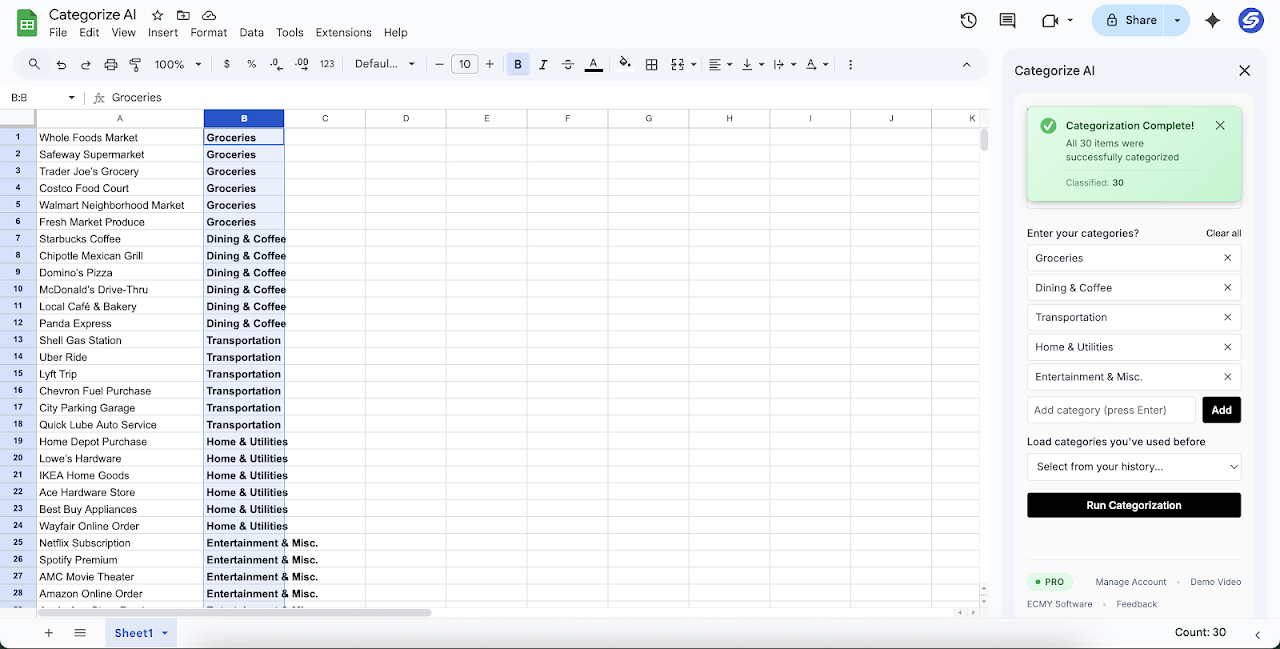
If you've ever stared at a spreadsheet full of credit card transactions wondering whether "AMZN MKTP US*2847HX" counts as office supplies or personal spending, you're not alone. Expense categorization is one of those tasks that sounds simple until you're 200 rows deep and your eyes are glazing over.
Whether you're a freelancer tracking business expenses, a small business owner doing your own bookkeeping, or just someone trying to figure out where all your money went last month, the process is usually the same: tedious, repetitive, and surprisingly time-consuming.
Why Expense Categorization Takes Forever
Here's the thing about categorizing expenses manually. It's not that any single transaction is hard to categorize. The problem is volume, combined with the mental overhead of context-switching.
You look at a charge. "Uber"—okay, that's Travel. Next row. "Uber Eats"—wait, that's Food, not Travel. Next. "DoorDash." Also Food. "Amazon." Could be anything. You click through to your bank statement, try to remember what you ordered two weeks ago. Was it printer paper or a birthday gift?
Do this 300 times and suddenly an hour is gone.
The real cost: Most people spend 2-4 hours per month just categorizing expenses. That's 24-48 hours per year. There's probably something better you could do with that time.
The Formula Approach (And Why It Breaks)
If you've tried to automate this before, you probably started with formulas. Something like nested IF statements or VLOOKUP tables:
=IF(ISNUMBER(SEARCH("uber",A2)),"Travel",IF(ISNUMBER(SEARCH("doordash",A2)),"Food",...))
It works... until it doesn't. A few problems:
- New merchants break everything. Buy from a new vendor? Formula doesn't know what to do with it.
- Merchant names are inconsistent. "UBER" vs "Uber Trip" vs "UBER *TRIP" all need separate rules.
- Same vendor, different categories. Amazon could be office supplies, software, or personal. Uber could be travel or food delivery.
- The formula gets unmanageable. After 50+ rules, good luck debugging or updating it.
You end up maintaining a complex system that still requires manual review. Not exactly the automation dream.
What AI Can Actually Do Here
Modern AI doesn't just match keywords. It understands context. When it sees "UBER EATS" it knows that's food, not transportation, even though both have "UBER" in the name. When it sees "AWS" it knows that's probably software/cloud services, not an abbreviation for something else.
More importantly, AI can handle the weird merchant names that break formulas. "SQ *BLUE BOTTLE COF" becomes "Food & Drink - Coffee" without you having to manually add a rule for every Square-based coffee shop transaction.
Common Expense Categories
Here are the categories most people need for expense tracking:
Travel & Transportation
Flights, hotels, Uber/Lyft rides, gas, parking, rental cars
Food & Dining
Restaurants, coffee shops, delivery services, groceries
Software & Subscriptions
SaaS tools, cloud services, streaming, apps
Office Supplies
Stationery, equipment, furniture, printing
Professional Services
Legal, accounting, consulting, freelancers
Marketing & Advertising
Ads, sponsorships, promotional materials
How Categorize AI Works
I built Categorize AI to handle exactly this problem. Here's the basic flow:
Define your categories
Tell the add-on what categories you want. Could be standard ones like "Travel" and "Food," or custom ones like "Client Entertainment" or "R&D Expenses."
Select your data column
Select the column containing your expense descriptions—the merchant names, transaction details, whatever your bank or credit card exports.
Run the categorization
The AI reads each description, figures out what it is, and assigns the appropriate category. Results go into a new column.
A few thousand transactions? Takes about 5-10 seconds. No formulas to maintain, no lookup tables to update.
A Real Example
Let's say you have these transactions from your credit card statement:
Notice how it handles the difference between "UBER *TRIP" and "UBER EATS"—same parent company, different categories. And those cryptic Amazon and Square transactions? Sorted correctly without you having to remember what they were for.
Custom Categories for Your Business
Standard categories don't work for everyone. Maybe you need to track:
- By project: "Project Alpha," "Project Beta," "Internal"
- By tax treatment: "100% Deductible," "50% Deductible," "Personal"
- By client: Expenses that should be billed back to specific clients
- By department: "Engineering," "Marketing," "Operations"
Categorize AI lets you define whatever categories make sense for your situation. Just type them in, and the AI will sort transactions into your custom buckets.
Manual Review vs. Full Automation
Here's something worth mentioning: AI categorization isn't always 100% perfect. It's really good—probably 95%+ accuracy for most expense types—but there will occasionally be an ambiguous transaction that needs a human decision.
That's fine. The point isn't to eliminate all human input. It's to eliminate the boring, repetitive work so you can focus your attention on the 5% of transactions that actually need judgment.
Going from "manually categorize 300 transactions" to "review 15 edge cases" is still a massive time savings.
| Approach | Time for 300 transactions | Maintenance |
|---|---|---|
| Fully manual | 1-2 hours | None (but you do it every month) |
| Formula-based | 15-30 min + setup | High (constant rule updates) |
| AI categorization | 5-10 seconds | Low (just review edge cases) |
Getting Started
If you want to try this with your own expenses, here's how:
- Export your transactions to Google Sheets (most banks and credit cards let you download CSV files)
- Install Categorize AI from the Google Workspace Marketplace
- Open the add-on and set up your categories
- Select your transaction descriptions and run it
There's a free trial, so you can test it with your actual data before deciding if it's worth keeping.
Ready to stop categorizing manually?
Try Categorize AI free and sort hundreds of expenses in seconds.
Get Started FreeBeyond Expenses: Other Uses
Once you get the hang of AI categorization, you'll probably find other uses for it. The same technology works for:
- Customer feedback: Sort reviews or support tickets by topic or sentiment
- Survey responses: Categorize open-ended answers into themes
- Product data: Classify inventory or SKUs into product lines
- Lead lists: Tag prospects by industry, company size, or other criteria
Basically, anytime you have a column of text that needs to be sorted into buckets, AI can probably help.
Wrapping Up
Expense categorization isn't glamorous work. Nobody got into business because they love sorting transactions into buckets. But it's necessary—for taxes, for budgeting, for understanding where your money actually goes.
The good news is that you don't have to do it the hard way anymore. AI tools have gotten good enough that they can handle the bulk of the work, leaving you to focus on the parts that actually require human judgment.
Try it out next time you're staring down a month's worth of credit card charges. Your future self (the one who isn't spending an hour on data entry) will thank you.