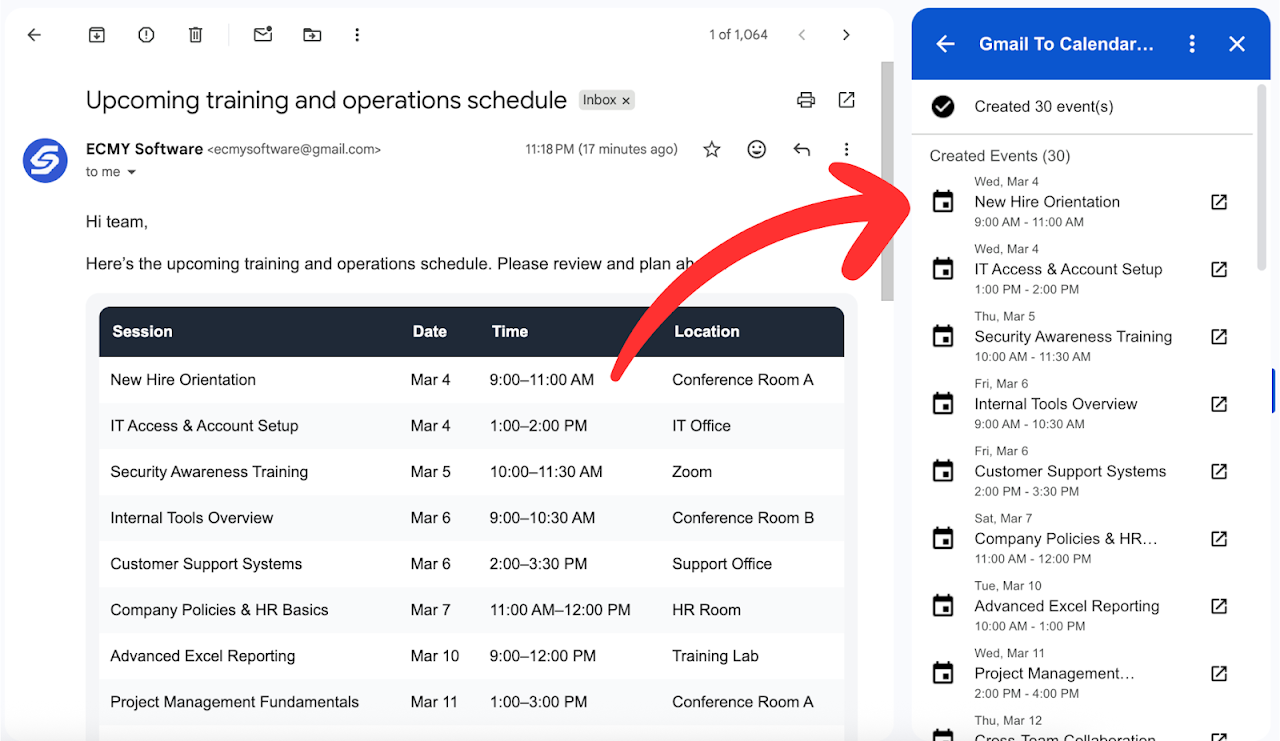
You just got an email with your kid's entire soccer season schedule. Or maybe it's a conference agenda with 15 different sessions. Or a client sent over a project timeline with a dozen milestones. Now you're staring at a wall of dates and times, wondering how long it's going to take to manually add each one to Google Calendar.
The answer used to be: a long time. But it doesn't have to be anymore.
The Bulk Event Problem
Single events are annoying enough to create manually. But when you get an email with multiple events—a full schedule, an itinerary, a recurring series—the pain multiplies. You're not just doing one copy-paste dance, you're doing it ten, fifteen, twenty times.
And here's the thing: these bulk schedules show up constantly in everyday life.
Travel Itineraries
Flights, hotels, car rentals, tours—all in one confirmation email
Course Schedules
Class times, exam dates, office hours for an entire semester
Conference Agendas
Keynotes, breakout sessions, networking events across multiple days
Sports Seasons
Game schedules, practice times, tournaments for the whole season
Project Timelines
Deadlines, milestones, review meetings for a project
Appointment Series
Treatment schedules, therapy sessions, recurring checkups
Each of these scenarios means one email with many events. And Google's built-in tools? They're not built for this.
What You're Probably Doing Now
Most people handle multi-event emails one of two ways:
Option 1: The Manual Grind
Open the email. Open Google Calendar. Create event. Copy title. Copy date. Copy time. Copy location. Save. Repeat for every single event. Hope you don't make a typo on event number 12.
Option 2: The "I'll Do It Later" Approach
Star the email. Tell yourself you'll add everything to your calendar when you have time. Never actually do it. Miss three events because they weren't on your calendar.
Neither of these is great. The first wastes a ridiculous amount of time. The second means your calendar isn't actually useful because half your schedule isn't on it.
A Better Way: AI That Understands Schedules
Here's where things get interesting. AI can now read an entire email, identify all the events in it, and create them in your calendar at once. Not one at a time—all of them, in a single action.
Let me show you what I mean. Say you get an email like this:
Monday 9am - Team kickoff meeting (Conference Room B)
Monday 2pm - Press release review with Marketing
Tuesday 10am - Final QA walkthrough
Wednesday 3pm - Stakeholder demo (Zoom link below)
Thursday 9am - Launch day! All hands on deck
Thursday 4pm - Post-launch retrospective
Friday 11am - Team celebration lunch at Giuseppe's
That's seven events. Manually? You're looking at 10-15 minutes of tedious data entry. With bulk event handling? About 10 seconds.
How Gmail to Calendar AI Handles Multiple Events
Gmail to Calendar AI was built specifically for this. When you open an email with multiple events, the AI doesn't just find the first one and stop. It scans the entire message and extracts every event it can find.
Open the email with your schedule
Works with any format—tables, bullet points, paragraphs, whatever the sender used.
Click the add-on
The AI reads the entire email and identifies all events with dates, times, and details.
Review all events at once
You'll see every event it found. Edit any details if needed, or remove events you don't want.
Create all events
One click adds everything to your Google Calendar. Done.
Real Scenarios Where This Saves Hours
The Conference Attendee
You registered for a three-day industry conference. The organizers sent you an email with the full agenda: 4 keynotes, 12 breakout sessions, 3 networking events, and a workshop. That's 20 calendar entries.
Manually? You're spending your lunch break doing data entry. With bulk import? You review the list, maybe uncheck the sessions you're skipping, and add the rest in seconds.
The Sports Parent
Your kid's basketball coach emails the season schedule. Games every Saturday for three months, plus Tuesday and Thursday practices. That's roughly 40 events.
Some parents print the schedule and stick it on the fridge. But then it's not on your phone when you're trying to plan something else. Bulk import means the whole season is on your calendar, color-coded if you want, accessible anywhere.
The Traveler
You booked a two-week trip. The travel agent sends a confirmation with flights (4 segments), hotel check-ins and check-outs (3 hotels), rental car pickup and return, plus 6 pre-booked tours and activities. That's 16+ events.
Having all of this on your calendar means you actually know what's happening when. No more digging through emails at the airport trying to remember which terminal.
The math: If you get just one multi-event email per week with an average of 5 events, and each event takes 2 minutes to create manually, you're spending over 8 hours per year on calendar data entry. That's a full workday you're not getting back.
What About Messy Formatting?
This is usually where people get skeptical. "Sure, it works if the email is perfectly formatted. But what about the real world?"
Fair point. Emails are messy. People format schedules in all kinds of ways:
- Tables (sometimes broken when viewed on mobile)
- Bullet points with inconsistent formatting
- Paragraphs with dates scattered throughout
- Mixed formats within the same email
- Dates written as "next Tuesday" instead of actual dates
This is exactly why AI is useful here. It doesn't need perfect formatting. It reads the email like a human would, understanding context and extracting the relevant information even when things aren't neatly organized.
Does it get everything right 100% of the time? No. That's why you review before creating. But it gets you 90% of the way there instantly, which is a lot better than starting from scratch.
A Note on Editing Before Creating
Sometimes you don't want every event on your calendar. Maybe the conference agenda includes lunch breaks (you don't need a calendar event for eating). Maybe your kid's schedule includes events for the B-team that don't apply to you.
The review step matters. You can:
- Remove events you don't need
- Edit titles to be more descriptive
- Adjust times if something looks off
- Add notes or locations that weren't in the email
It's about getting 90% of the work done automatically, then fine-tuning the last 10%.
Stop creating events one at a time
Gmail to Calendar AI handles single events and full schedules. Try it free for 14 days.
Get Started FreeGetting Started
If you want to try bulk event import:
- Install Gmail to Calendar AI from the Google Workspace Marketplace
- Open an email with multiple events (conference agenda, travel itinerary, season schedule, etc.)
- Click the add-on icon in Gmail's sidebar
- Review the events it found
- Click to add them all to your calendar
There's a free trial, so you can test it with your actual emails before committing.
Bottom Line
Manually adding events to your calendar one at a time made sense when the alternative was... nothing. But that's not the case anymore. When you get an email with a full schedule, you shouldn't have to spend 15 minutes playing copy-paste.
Whether it's a conference agenda, a sports season, a travel itinerary, or a project timeline—if it's in an email, it can be on your calendar in seconds. Your time is worth more than data entry.